· 12 min read
How to add a customer review widget to your website (step-by-step)
In short:To add a customer review widget to your website, copy your site ID from your review platform, pick a layout that suits the spot (cards for a homepage, a list for a reviews page, a compact badge for a pricing page), then paste one script tag and one placeholder element where the reviews should appear, or hand an install prompt to a coding agent, and publish. With Quizzings the whole flow takes about five minutes, and new reviews appear on your site by themselves afterwards, with no redeploy.
Adding a customer review widget to your website comes down to two pieces of code: a script that fetches your published reviews, and a placeholder element that marks where they should appear. You copy both from your review platform, paste them into your site (or ask a coding agent to do it), and publish. This guide walks through the whole process using Quizzings as the worked example, from finding your site ID to checking the widget is live, and the same basic shape applies to most review tools you might be comparing.
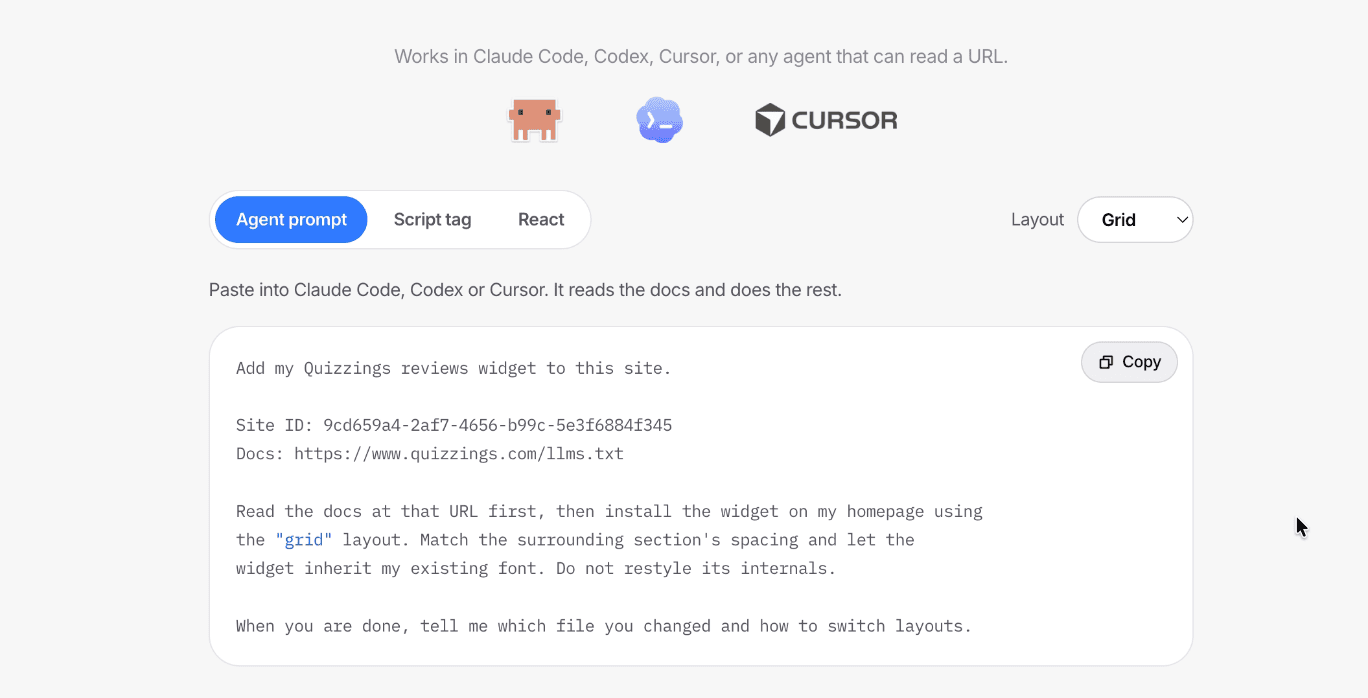
The screenshot above is the step people usually expect to be the hard part: the Embed page, where the install code is generated with your site ID already filled in. Everything after it is paste and publish.
What you need before you start
Three things, and none of them are technical:
- An account with a review platform that offers an embed. On Quizzings that's a free trial with no card, and your review link and site ID exist the moment you finish signing up.
- Access to edit your website. Either the site's code, or a page editor that lets you add a block of custom HTML. WordPress, Webflow, Shopify, Squarespace and Framer all do.
- About five minutes. There's no build step, no config file and no DNS to change.
You don't need any reviews yet. You can install the widget first and it fills in by itself once your first review is published, though it's worth collecting a handful before you put it on a page every visitor sees.
Step 1: Set up somewhere to collect reviews
A widget only displays reviews, so something has to collect them first. When you sign up for Quizzings, you type your business name and get a personalized review link, such as quizzings.com/hearthline, that customers open to leave a star rating and a comment without creating an account. Our guide to the feedback link generator covers that setup in detail, and how to ask for customer reviews covers the wording and timing that gets customers to actually use it.
The review link and the widget are two ends of the same pipe: customers write into one, and your website reads from the other.
Step 2: Copy your site ID from the Embed page
Your site ID is the one value that ties the widget to your reviews. In the Quizzings dashboard, open Embed. The site ID is printed at the top of the page as a 36-character code of letters, numbers and dashes.
You rarely need to copy it by itself, because every snippet on the Embed page already has it filled in. It's printed separately for the times you're setting something up by hand. It isn't a secret either: it can only read reviews that are already public on your reviews page, so it's safe to paste into your site's HTML.
Step 3: Pick a layout for where the widget will sit
Choose the layout based on where it's going on the page, not on which one looks nicest by itself. Quizzings has three:
| Layout | What it shows | Where it fits |
|---|---|---|
| Grid | Review cards side by side, wrapping onto new rows on smaller screens | A homepage section or a landing page |
| List | Your average score and review count above a stack of reviews | A dedicated reviews or testimonials page |
| Badge | Your average score, stars and review count in one compact block | A pricing page, a sidebar or the footer |
Pick one from the Layout dropdown on the Embed page. The preview underneath redraws with your own published reviews (or example content, if you don't have any yet), and the install code above it is rewritten to match, so the code you copy is for the layout you just previewed. You can switch later by changing one word in the code.
Step 4: Add the widget to your website
There are three ways to install it, and all three show the same live reviews. Pick the one that matches how you already edit your site.
Option A: paste the script tag (any website)
This is the universal route. It works on a hand-coded HTML site and in any site builder that accepts custom HTML. On the Embed page, choose the Script tag tab and copy the code. It looks like this, with your own site ID in place of YOUR_SITE_ID:
<!-- Paste this once, anywhere in the page. -->
<script
  src="https://www.quizzings.com/widget.js"
  data-site="YOUR_SITE_ID"
  data-layout="grid"
  data-limit="6"
  defer
></script>

<!-- Paste this where the reviews should appear. -->
<div data-quizzings="reviews"></div>
The two parts do different jobs. The <script> loads the widget and can go anywhere on the page: in the <head>, at the end of the <body>, or right next to the placeholder. The <div> is the placeholder, and its position decides where the reviews show up, so put it inside the section you want them in. data-limit sets how many reviews to show (up to 50), and data-layout is the word you change to switch between grid, list and badge.
Option B: hand the prompt to a coding agent
If your site's code lives in a repository and you use Claude Code, Codex, Cursor or a similar coding agent, you don't have to find the right file yourself. Choose the Agent prompt tab, copy it, and paste it into your agent:
Add my Quizzings reviews widget to this site.

Site ID: YOUR_SITE_ID
Docs: https://www.quizzings.com/llms.txt

Read the docs at that URL first, then install the widget on my homepage using
the "grid" layout, matching the surrounding section's spacing. Do not
restyle its internals.

When you are done, tell me which file you changed and how to switch layouts.
The docs link points to a plain-text install guide written for coding agents, with the exact attribute names and a checklist that includes confirming the site ID with you and loading the page afterwards to check the reviews render. The agent works out whether your site needs the script tag or a React component, places it, and tells you which file it changed. Change "my homepage" in the prompt if you want the reviews somewhere else.
Option C: build it into a React or Next.js site
If you'd rather render reviews with your own components and design system, the React tab gives you a component that fetches your reviews as JSON and outputs plain, unstyled markup for you to style. There's no npm package to install; you paste the component into your project. The same JSON is available from a public endpoint, and the agent docs describe every field, including how to fetch it from a Next.js server component instead.
The trade-off is that you take on what the script tag does for you. The script tag refreshes itself every minute and adds review structured data to your page. A component you write yourself does only what you write it to do.
How to add a review widget on WordPress, Webflow, Shopify, Squarespace and Framer
On a site builder, you add the widget by pasting the whole snippet from the Script tag tab into the builder's custom HTML or embed block, placed at the spot where the reviews should appear. Because the placeholder is inside that block, that's where the reviews show up. Here's where that block lives on each platform:
- WordPress: In the block editor, add a Custom HTML block where you want the reviews and paste the snippet into it. On WordPress.com, script tags are only kept on plans that allow custom code. A self-hosted WordPress site doesn't have that restriction for administrators.
- Webflow: Drag a Code Embed element onto the page and paste the snippet into it. Custom code doesn't run inside the Designer, so check the published site to see the widget.
- Shopify: In the theme editor, add a Custom Liquid section to the page (available on Online Store 2.0 themes such as Dawn) and paste the snippet into it.
- Squarespace: Add a Code block, paste the snippet, and switch off Display Source so the code runs instead of showing as text. Squarespace only runs JavaScript in code blocks on plans that include custom code.
- Framer: Add an Embed component set to HTML, paste the snippet into it, and make the embed tall enough for the layout you picked.
- A hand-coded site: Paste the snippet into the page's HTML where the reviews should appear, then deploy the way you normally would.
Step 5: Publish and check the widget is working
Once the code is in, publish your site and open the live page, not the editor preview. Three quick checks confirm everything is connected:
- The reviews on the page match your dashboard. The widget shows your most recent published reviews first, up to the number in
data-limit. - Your site ID returns data. The See your JSON button on the Embed page opens the raw feed the widget reads from. If your reviews are listed there, the ID is right.
- The browser console is quiet. When the widget hits a problem, it logs a warning starting with
[quizzings]rather than putting an error message on your page, so the console is the place to look if the space stays empty.
Why is my review widget not showing?
It's almost always one of these, roughly in order of how often they happen:
- You're looking at the editor, not the live site. Most builders don't run custom scripts in their editing canvas or preview. Publish, then check the real URL.
- The builder stripped the script tag. Some editors and plans remove
<script>tags from custom HTML when you save. If the tag is gone when you reopen the block, that's what happened. See the platform notes above. - The placeholder is missing or mistyped. The widget only renders into an element with
data-quizzings="reviews". If that attribute is misspelled or the<div>didn't get pasted, the script has nowhere to draw and quietly does nothing. - The site ID is missing or wrong. A missing
data-sitelogs[quizzings] Missing data-site on the script tag.in the console, and an ID that doesn't match your business logs a[quizzings]warning with an error status. Copy the snippet again from the Embed page rather than retyping the ID. - You don't have any published reviews yet. Send your review link to a few customers first. The widget fills in by itself as soon as reviews are published.
- Your free trial has ended. Reviews you'd already published stay on your site, but new ones are held back from publishing until you pick a plan.
How to style the widget so it matches your site
The widget is built to fit into your page without any styling work, and to stay intact whatever CSS your site already has. It renders inside its own sealed style boundary (a Shadow DOM), so your site's CSS can't break it and its CSS can't leak into your page. It also picks up your page's text colour automatically, so it reads correctly on a light or a dark background.
A few attributes cover almost every change people want to make:
| To change | Add this | Example |
|---|---|---|
| Star and accent colour | data-accent on the script tag |
data-accent="#0f766e" |
| Typeface | --quizzings-font on the placeholder |
style="--quizzings-font: Georgia, serif" |
| Number of reviews | data-limit on the script tag (1 to 50) |
data-limit="9" |
| How often it checks for new reviews | data-refresh on the script tag, in seconds |
data-refresh="120" |
By default, the widget uses a neutral system font rather than your site's font, because a display font set on a section tends to make review text read like a headline. Set --quizzings-font if you do want your own typeface. What you can't do is target the widget's internal classes from your own stylesheet. They aren't reachable through the style boundary, and that's the same thing that stops your CSS from breaking the widget.
Does a review widget help SEO?
It helps search engines read your rating, but it doesn't guarantee stars in search results. Once at least one review is published, the Quizzings widget adds Schema.org AggregateRating markup (your average score and review count) to your page, on your own domain rather than ours, so crawlers can read your rating as structured data. However, Google has limited review rich results for reviews a business shows about itself since 2019, so think of that markup as making your rating machine-readable, not as a promise of stars next to your listing.
Your public reviews page at quizzings.com/your-name/reviews is also rendered on the server and indexable, so it's worth linking to from your site, your email signature and your social bios. Our piece on who should own your customer reviews covers why keeping that content under your control matters beyond search.
What happens after the widget is installed
Nothing, and that's the point. The widget checks for new reviews every minute while someone has the page open, and again when they switch back to the tab, so a review a customer submits today shows up on your site a minute or two later without you redeploying or re-pasting anything. Background tabs make no requests at all, and the widget only redraws when something has actually changed, so the refresh doesn't cost your visitors anything.
If a review breaks the rules, you can hide it from your widget and your public page from the dashboard. A hidden review stops counting toward your average but isn't deleted, and nobody, including us, can edit what a customer wrote. From there, the job is just keeping the reviews coming: send your review link after every real customer win, and the widget takes care of the rest. If you haven't set it up yet, start a free trial and the widget can be on your site within five minutes.
Frequently asked questions
How do I add reviews to my website without coding?
Use your site builder's custom HTML or embed block. Copy the script tag snippet from your review platform, paste it into a Custom HTML block in WordPress, a Code Embed element in Webflow, a Custom Liquid section in Shopify or a Code block in Squarespace, and publish. You don't write any code yourself. If your site is built in code instead, you can paste Quizzings' agent prompt into a coding agent such as Claude Code, Codex or Cursor, and it installs the widget for you.
Will a review widget slow down my website?
The Quizzings widget is designed not to. It's a single script of around 10 KB compressed with no dependencies, loaded with the defer attribute so it never blocks your page from rendering, and it makes one request for your reviews, which is served from a cache rather than hitting a database on every visit. Tabs open in the background make no requests at all.
Can I put the review widget on more than one page?
Yes. Add the script tag and placeholder to every page where you want reviews, and you can use a different layout on each, such as the grid on your homepage and the badge on your pricing page. On a single page, the script fills every placeholder it finds, so one script tag can show reviews in several spots. Quizzings' Free and Pro plans cover one site, and the Team plan covers as many sites as you run.
Do new reviews show up on my website automatically?
Yes. The Quizzings widget checks for new reviews every minute while the page is open, and again whenever a visitor comes back to the tab, so a newly published review appears on your site within a minute or two, with no redeploy and no code change.
Can I choose which reviews appear in the widget?
The widget shows your most recent published reviews, newest first, up to the number you set with data-limit (anywhere from 1 to 50). You can hide a review that breaks the rules from both the widget and your public reviews page, and it stops counting toward your average, but you can't edit or delete what a customer wrote, which is what keeps the reviews on your site credible.
Will the widget show star ratings in Google search results?
The Quizzings widget adds Schema.org AggregateRating markup with your average score and review count to your page, so search engines can read your rating. Whether Google shows stars is Google's decision, and since 2019 it has limited review stars for reviews a business hosts about itself on its own website, so the markup makes your rating machine-readable rather than guaranteeing a star snippet.
What happens to the widget when my Quizzings free trial ends?
It keeps working. Every review you've already published stays on your site, and your review link keeps accepting new reviews. The new ones are held back from publishing until you choose a plan, and go live as soon as you do. Nothing is deleted.